How to modify Windows 11 Group Policy so you can monitor RELEVANT security logs
Some important logs are not stored by default in Windows environments. This post explains how to use Group Policy Editor to ensure vital security event logs (like process creation events) are stored.
I was doing some self-lead study outside of my course and messing around with my SOC homelab when I realised that Windows default Group Policy settings do not log events for a lot of behaviours that I wanted to monitor. This blog will guide you through modifying Group Policy settings on a freshly installed Windows 11 VM so that you can monitor and detect events that are often triggered by threat actors in a Windows environment.
Requirements
- A freshly installed Windows 11 VM - That’s it!
Note, Windows 11 Home doesn’t come with Group Policy Editor installed, make sure your Windows VM is at least Pro.
Steps
1) Open Group Policy Editor
Using Start Menu
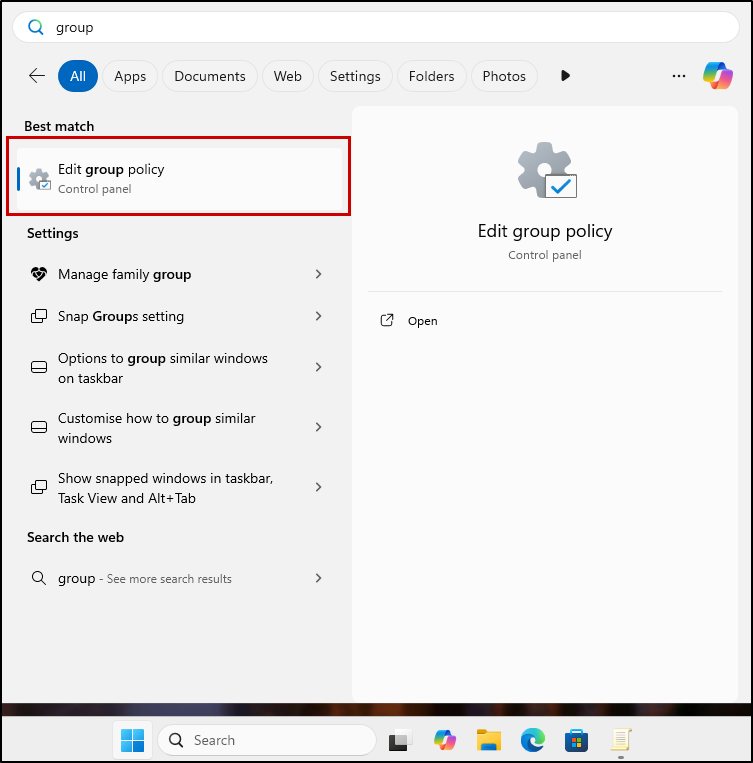 Type “group policy” into a Start menu search, click Edit group policy
Using Run
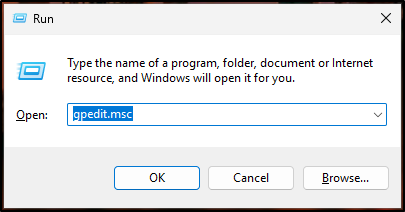 Press < Windows key + R > to open a Run dialogue box, type “gpedit.msc” and press < Enter > to open Group Policy Editor
2) Review your Local Audit Policy
Using the navigation pane on the left, open your Audit Policy, found here: 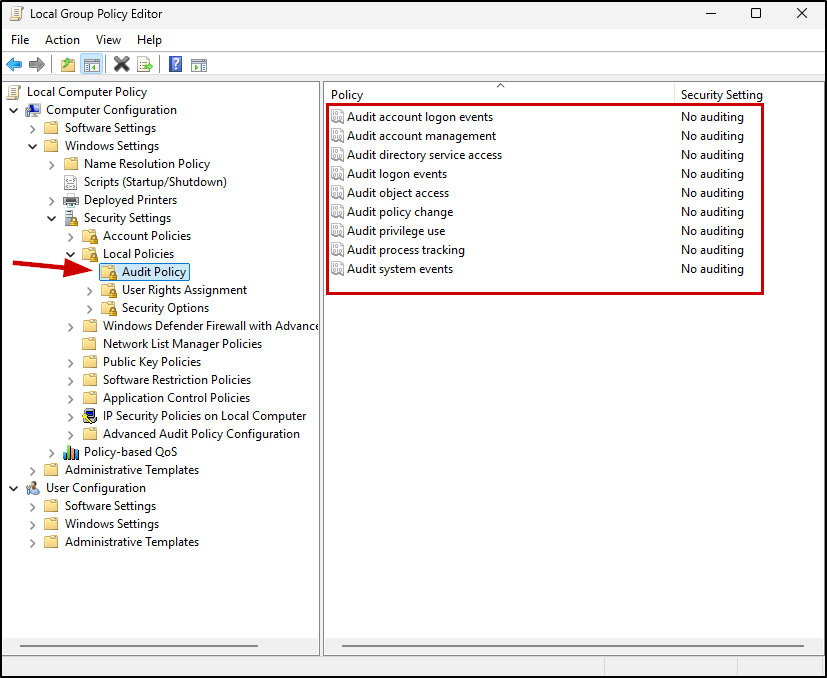 Computer Configuration > Windows Settings > Security Settings > Local Policies > Audit Policy
You’ll notice that all these policies have their Security Setting set to No auditing. Right-clicking a policy, opening its properties and reading the Explain tab tells us what logging is enabled by default.
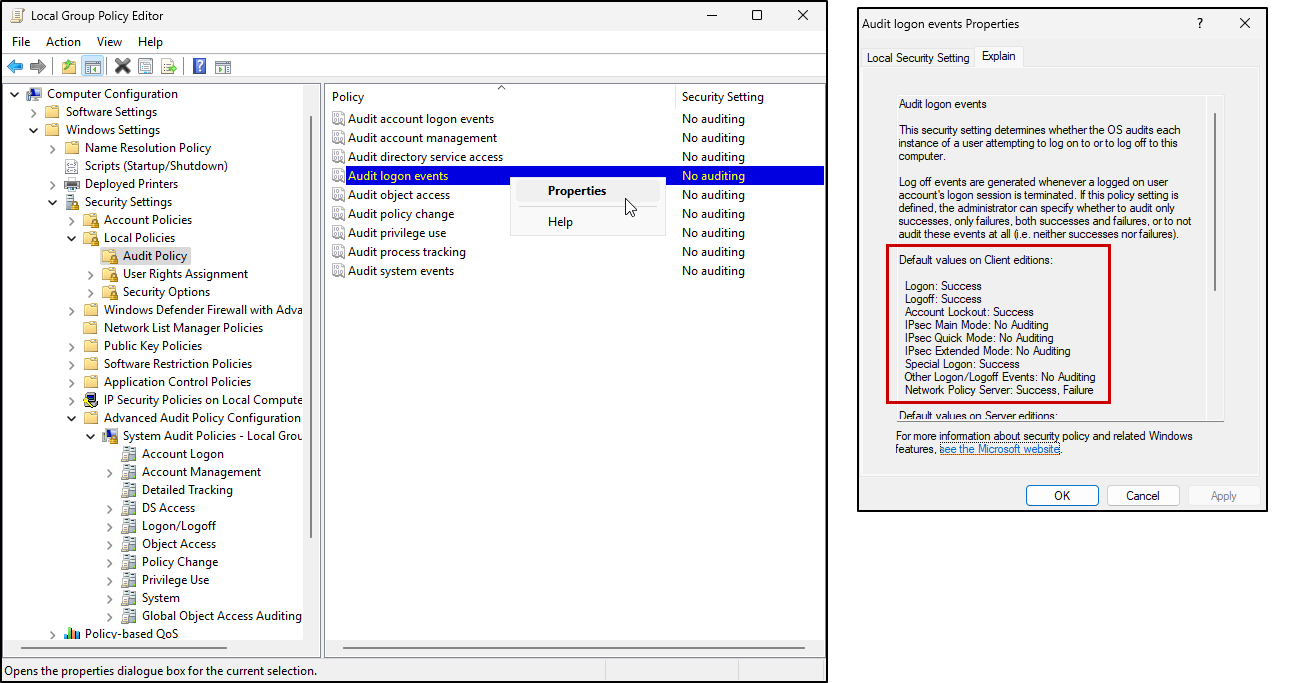 Right-click Audit logon events, click Properties, switch to Explain tab
With the logon events example above, we are only going to see logon successes in our Event Viewer logs. That’s handy, but what if an attacker is attempting log in using brute force, wouldn’t you also want to log failures so that you can see in the logs when an unusual amount of failed attempts have been made to login to an account?
3) Modify Audit Policy logging
Using our Audit logon events example again, in the Local Security Setting tab of its properties, you can check the Success and Failure boxes under “Audit these attempts:”, and click OK. This will ensure that logs will be generated for both failed and successful login attempts.
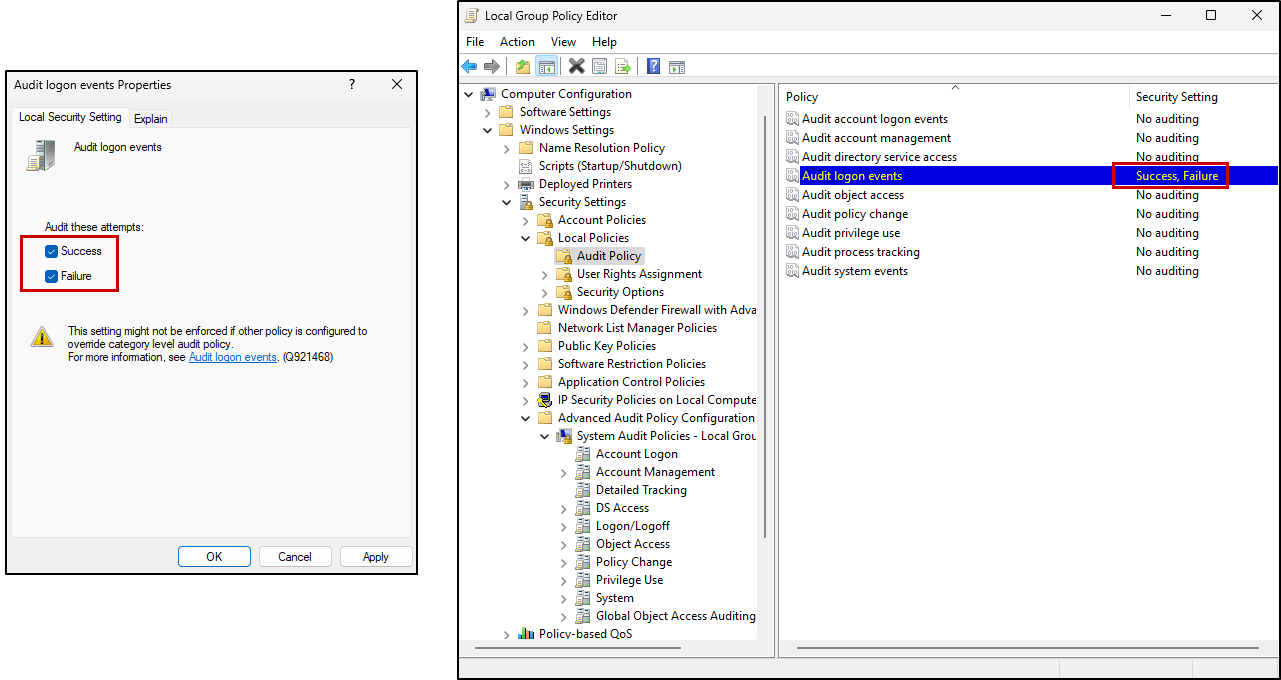 After applying the changes, the Security Setting column of the Audit logon events policy should update to show Success, Failure
Repeat Step 3 to change the properties of the following policies to audit both Success and Failure:
- Audit account management - Creating users, making accounts admin, modifying groups, etc.
- Audit logon events - Already discussed
- Audit object access - Making changes to the registry
- Audit policy change - Modifying policies (what you are doing right now!)
- Audit privilege use - Tracks when a users rights are exercised (such choosing allow for a UAC prompt)
We are going to leave Audit process tracking unchanged for now, and I will use it as an example for setting more specific and fine-grained policies in Step 4.
To learn more about how these policies work and the information you can gather from their logs, I recommend reading the page for each policy written by Ultimate Windows Security (they also have great info on Event IDs, Google them!):
4) Modifying Advanced Audit Policies
You can configure more granular and advanced audit policies in Advanced Audit Policy Configuration. In laypersons terms, the audit policies we modified in Step 3 are like broad categories of event auditing that can be enabled, whereas these advanced audit policies allow you to configure event auditing subcategories to a much higher level of detail. Enabling Audit: Force audit policy subcategory settings… under Local Policies > Security Options will mean more specific configuration changes you make here will override relevant “broad” Local Audit Policy changes made in step 3.
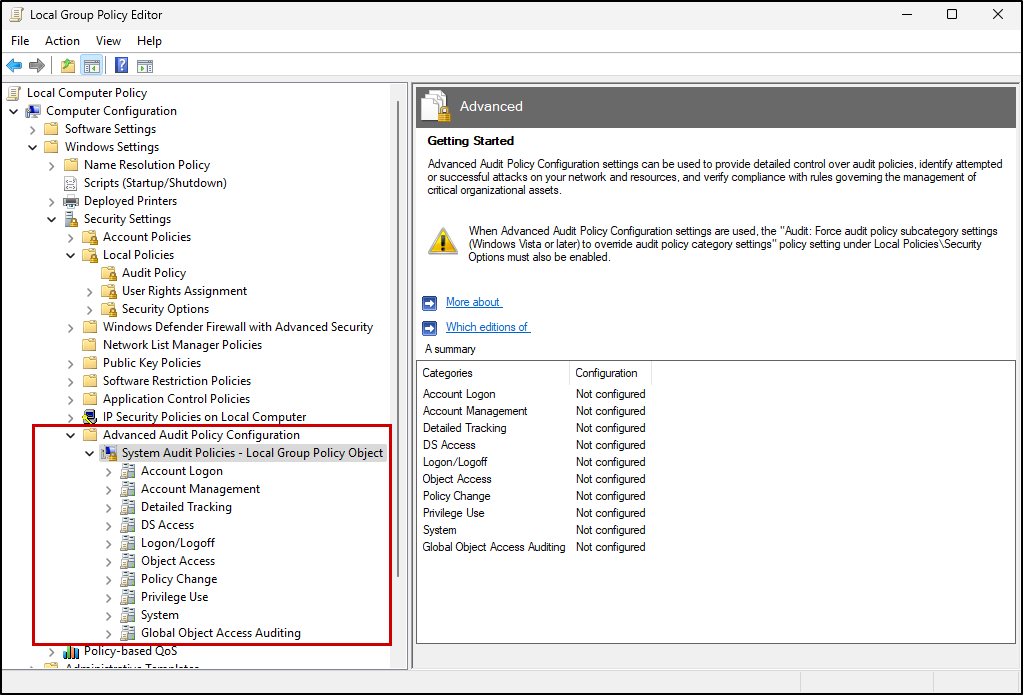 Computer Configuration > Windows Settings > Security Settings > Advanced Audit Policy Configuration > System Audit Policies - Local Group Policy Object
As an example, we will enable Audit Process Creation within Detailed Tracking to ensure that Event ID 4688 is logged.
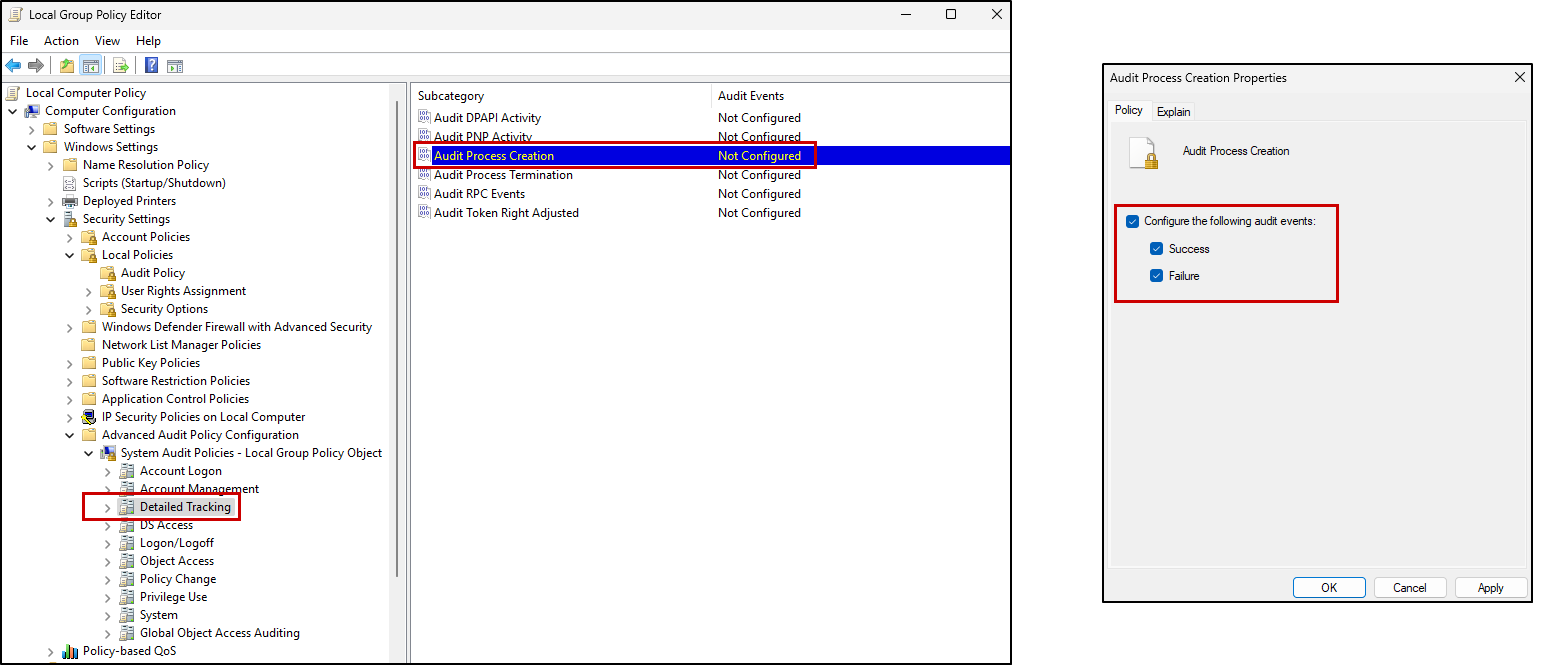 Detailed Tracking > Audit Process Creation
This Event ID is incredibly useful to log, as you can use it to detect malicious process creation in your SIEM tool - an article for another day. Read up on Event ID 4688 in Windows Ultimate Security!
You should now have some solid auditing policies set up on this VM, mess around with it and see what events you can spot in the security tab of its Event Manager!
Thanks for reading!
And thank you to CyberLynk for their continued support of my cybersecurity learning journey!